
🎬 Stream 30,000+ channels in 4K
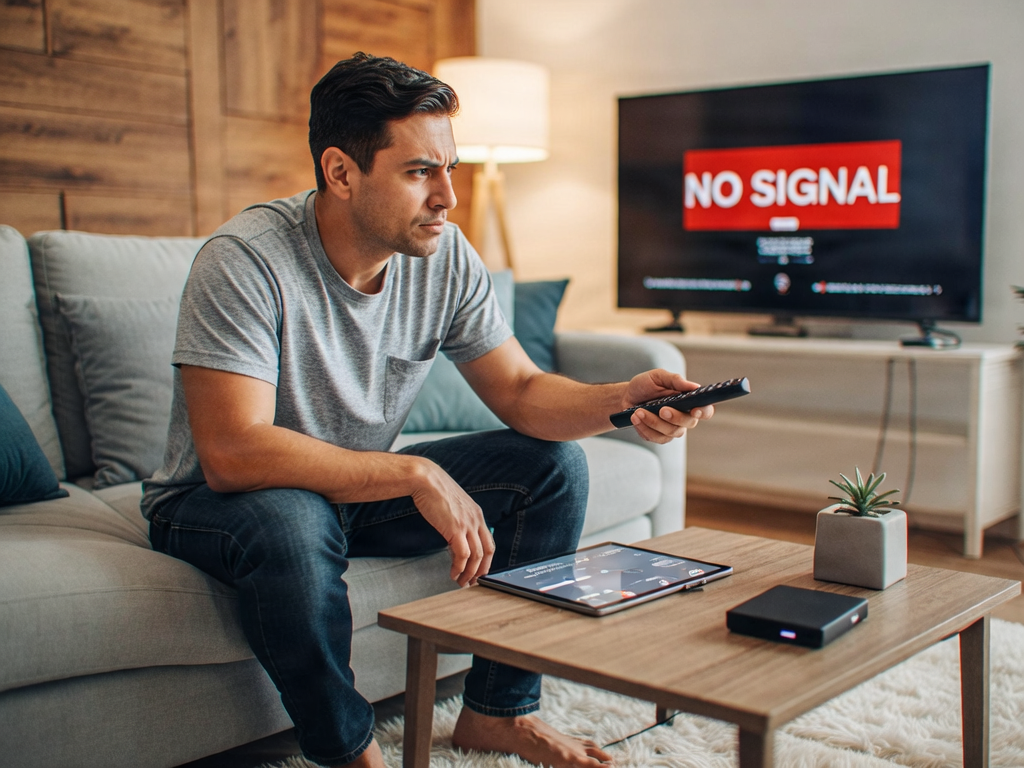
Last Tuesday, I sat down to watch the Champions League kickoff and hit a brick wall. Every single channel flashed a stubborn TiviMate error code 403 message across my screen. Honestly, it drove me crazy. Everything worked fine the night before, so I assumed my streaming box had finally died.
However, my hardware was completely fine. This specific error simply means your provider's server is rejecting your connection request. Therefore, fixing it only takes a few quick adjustments inside your settings menu. Let’s walk through the exact steps to get your live channels back online.
What Causes TiviMate Error Code 403?
In the networking world, any error starting with the number four means a server is blocking your device. According to Wikipedia's technical guide on HTTP 403 errors, a "Forbidden" status indicates that the server understands your request but refuses to authorize it.
Consequently, the TiviMate app itself is rarely broken. Instead, your IPTV server is slamming the digital door in your face. This usually happens for three simple reasons:
- Your app is still running silently in the background on another television.
- Your provider is blocking the default TiviMate software signature.
- Your internet provider or VPN is triggering a security lock.
1. Spoof Your User-Agent (The 30-Second Fix)
Here is a strange industry secret. Some budget IPTV servers actively block TiviMate because its fast Electronic Program Guide (EPG) requests use extra bandwidth. Instead, they try to force you onto their basic, branded player.
Fortunately, you can trick the server in seconds. Think of it like putting a disguise on your streaming stick. You simply change your "User-Agent" so your device pretends to be a different media player:
- Open TiviMate and navigate to Settings.
- Select General and click on User-Agent.
- Type VLC or IPTVSmartersPlayer into the text box and save it.
Once you make this change, test a live channel immediately. In my experience, this single tweak resolves the TiviMate error code 403 problem more than half the time.
2. Kill "Ghost" Connections on Other TVs
I learned this next lesson the hard way. Most IPTV subscriptions only allow one or two active streams at the exact same time.
However, turning off your television with the power button does not always close the streaming app. Your living room Firestick might keep streaming silently in the background. Consequently, when you turn on your bedroom TV, the server blocks you for exceeding your connection limit.
Therefore, you must force the application to close completely. Check out our step-by-step guide on how to clear cache on Firestick for better streaming to learn how to force-stop background apps and wipe corrupted temporary data. Unplugging your other streaming sticks for two minutes works great, too.
3. Fix VPN Collisions and ISP Blocks
Sometimes, your network routing is the real culprit. If you use a Virtual Private Network, hundreds of other users might share your exact same IP address. As a result, your provider's security firewall might mistake your connection for a shared account and lock it.
First, disconnect your VPN completely and reload your playlist. If the stream plays, simply switch your VPN to a fresh city. On the other hand, if your local internet company is blocking your stream directly, review our complete VPN for IPTV setup guide to configure obfuscated servers properly.
4. Check Your Xtream Codes for Hidden Spaces
Did this error pop up right after you typed in a brand-new playlist? A tiny typo will trigger an instant authorization rejection.
Specifically, Android TV on-screen keyboards love adding an automatic space right after a period. Go to Settings > Playlists, select your provider, and check your Xtream Codes parameters. Look closely at the server URL. Remove any accidental spaces between the domain name and the .com extension, then click update. If your screen still stays black after fixing typos, read our deeper troubleshooting walkthrough on fixing IPTV channels not loading.
5. Upgrade to a TiviMate-Friendly Server
Software tweaks can fix local hiccups, but they cannot fix an overloaded, restrictive server. If your provider constantly forces you to change settings just to watch the evening news, you are paying for a broken product.
At TivimateGold, we build our server architecture specifically for high-end players. When you upgrade to our premium TiviMate IPTV subscription, you never have to worry about blocked User-Agents or random weekend lockouts. Our feeds connect instantly in crisp 4K.
Still staring at an error screen after trying these steps? Send a quick message to our team on WhatsApp Live Support and we will help you diagnose your setup in real time!