

Let’s fix that IPTV buffering and end it for good!
There’s nothing more frustrating than sitting down to enjoy your favorite show or live game, only to be constantly interrupted by the dreaded spinning circle. It turns an exciting moment into a pixelated mess and a relaxing evening into a headache.
I’ve been there. I used to think buffering was just “part of IPTV.” But after years of optimizing setups for myself and countless others, I’ve learned that buffering is almost always fixable. It’s rarely your IPTV provider’s fault, and it’s almost never a mystery. It’s usually a detectable bottleneck.
You don’t have to live with it. This isn’t just a list of generic “turn it off and on again” advice. These are the 10 most effective, battle-tested strategies to diagnose and fix buffering issues, helping you achieve that smooth, buffer-free streaming experience you deserve.
The Ultimate Troubleshooting Checklist To Fix IPTV Buffering
Work through these tips methodically. You might solve your problem in step 1, or it might take a few more. Patience is key!
Tip 1: Reboot Everything (The First and Most Important Step)
Seriously. This isn’t a joke. Your router, modem, and streaming device (Firestick, Android Box) accumulate temporary data and can get overwhelmed. A fresh start often clears minor glitches and helps with your process to fix IPTV buffering.
- How to do it: Unplug your router, modem, and IPTV device from power. Wait a full 60 seconds. Plug the modem/router back in first, wait for all lights to stabilize (3-5 minutes), then plug in your IPTV device.
Tip 2: Upgrade Your Internet Connection (More Speed = Less Buffering)
IPTV needs consistent bandwidth. If your internet is too slow, it simply can’t keep up with the video stream.
- How to do it:
- Perform a speed test (Google “internet speed test”) on a device connected to the same network.
- For reliable HD streaming, aim for at least 25-30 Mbps download speed. For 4K, you’ll need 50+ Mbps.
- If your speeds are consistently low, contact your ISP to upgrade your plan.
Tip 3: Go Wired! (Ethernet is King)
Wi-Fi is convenient, but it’s prone to interference and signal drops. An Ethernet cable provides a direct, stable, and faster connection. This is the single most effective buffering fix for many users.
- How to do it: If your Android TV box has an Ethernet port, use a cable! If you’re using a Chromecast with Google TV or a Firestick, buy a cheap USB Ethernet adapter (ensure it’s compatible with your device).
Tip 4: Optimize Your Wi-Fi Signal (If Wired Isn’t an Option)
If you must use Wi-Fi, make it as strong as possible.
- How to do it:
- Move your router: Place it centrally, away from walls, large metal objects, and other electronics (microwaves, cordless phones).
- Reduce interference: Change your router’s Wi-Fi channel (check your router settings). Use the 5GHz band if your devices support it; it’s faster over short distances.
- Upgrade your router: An old, outdated router might not be capable of modern streaming demands.
Tip 5: Close Background Apps and Clear Cache
Your streaming device might be running too many apps in the background, consuming RAM and processing power.
- How to do it (Firestick/Android TV):
- Go to Device Settings > Applications > Manage Installed Applications.
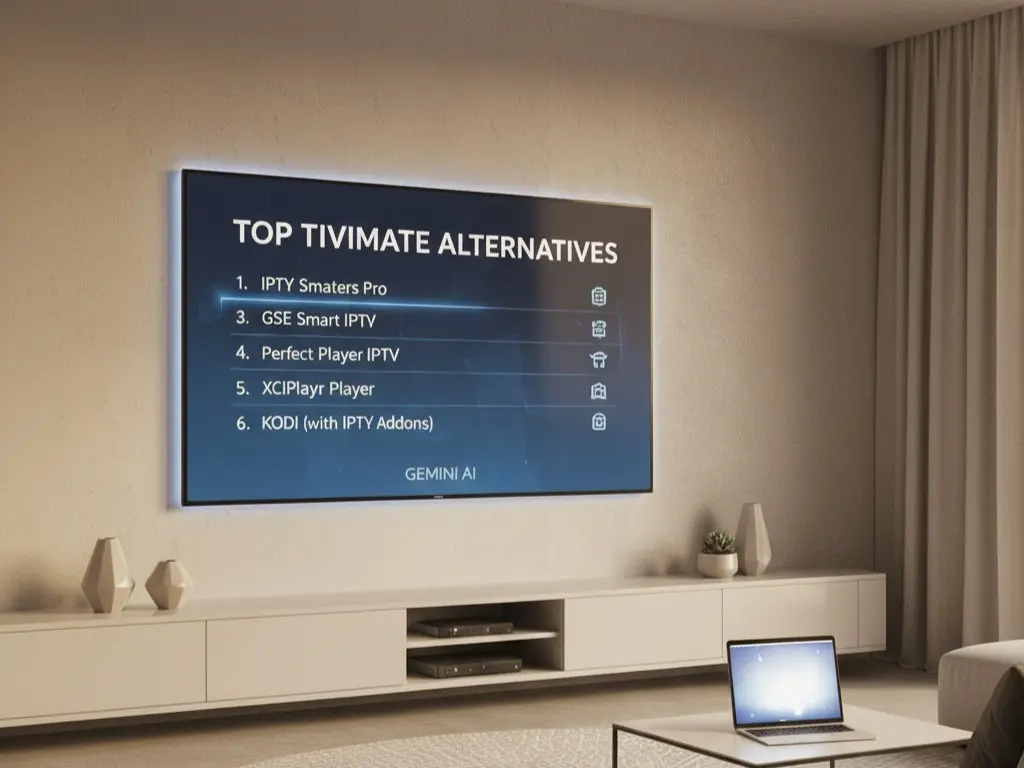
- Select your IPTV player (e.g., TiviMate) and other streaming apps.
- Click Force Stop and then Clear Cache. (Do NOT “Clear Data” unless instructed, as it removes login info).
Tip 6: Adjust IPTV Player Buffer Settings (Advanced)
Some IPTV players, like TiviMate, allow you to adjust the buffer size, which can help pre-load more video data.
- How to do it (TiviMate):
- Go to Settings > Playlists.
- Select your playlist.
- Go to Xtream Codes parameters (or M3U parameters if using M3U).
- Adjust “Stream buffer size.” Experiment with Small, Medium, or Large. A larger buffer might help, but can also cause a longer initial load time. Start with Medium.
Tip 7: Use a High-Quality VPN (If You Need One)
If you’re using a VPN, a cheap or overloaded server can cause severe buffering.
- How to do it:
- Test without VPN: Temporarily disconnect your VPN and see if buffering stops. If it does, your VPN is the culprit.
- Switch servers: Try connecting to a different VPN server location, preferably one closer to your physical location or closer to your IPTV provider’s servers.
- Upgrade your VPN: Invest in a reputable, fast VPN service if you rely on one.
Tip 8: Update Your IPTV App & Device Firmware
Outdated software can have bugs or lack optimizations for newer streams.
- How to do it: Check your device’s app store for updates to your IPTV player (e.g., TiviMate). Also, check your Android TV Box/Firestick settings for any system firmware updates.
Tip 9: Check for Server Overload (Contact Your Provider Last)
Sometimes, the issue is with your IPTV provider’s server. This typically happens during peak viewing times (e.g., big sports events, prime time).
- How to do it: Try different channels. If all channels, even popular ones, are buffering, it might be the provider.
- Contact them: If you’ve tried everything else, reach out to your provider. Politely explain all the steps you’ve already taken.
Tip 10: Upgrade Your IPTV Device (The Ultimate Solution to Fix IPTV Buffering )
If you’ve tried everything above and still suffer from buffering, your streaming device itself might be the bottleneck. Old, underpowered devices (especially generic Android boxes with 1GB RAM) simply cannot keep up with modern video decoding.
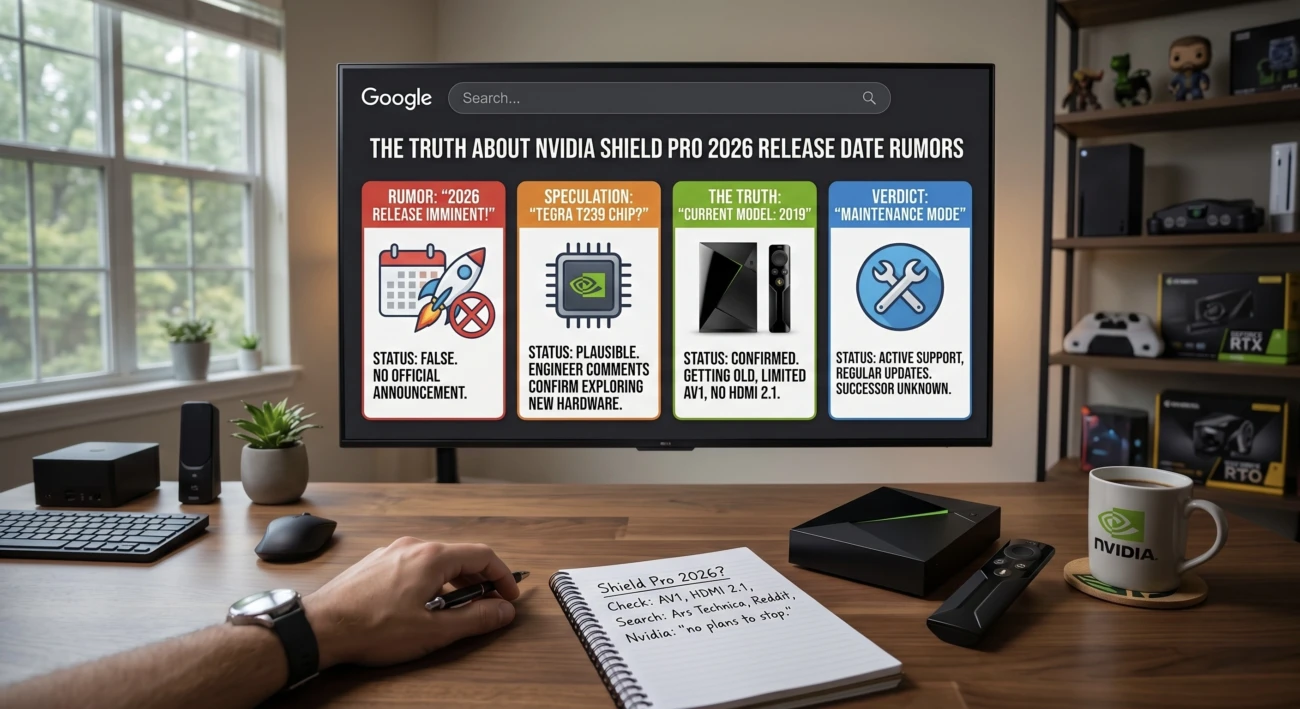
- How to do it: Consider upgrading to a recommended device like the Mecool KM2 Plus Deluxe or the NVIDIA Shield TV Pro (as discussed in our previous blog post!).
Say Goodbye to the Spinning Wheel!
Buffering is not a permanent sentence. By systematically working through these tips, you can pinpoint the cause and enjoy the smooth, uninterrupted IPTV experience you signed up for. Most of these fixes take just minutes but make a world of difference.
Still wrestling with buffering after trying these tips? We’re here to help you achieve perfect streaming.
Click Here To Contact Us on WhatsApp for Personalized Support.